Messages, Notifications, and Push: Never Miss a Booking Conversation
A booking dies in the gap between someone sending a message and someone else seeing it. Three days pass, the organizer books elsewhere, and both sides assume the other was not interested.
"I did not lose the gig because I was too expensive. I lost it because I read the message on Thursday."
Three things shipped to close that gap: in-app messages, a notifications feed, and push notifications.
Messages: Real Conversations, Inside Yarnoo
/messages is your inbox for direct conversations with real people on the platform. Threads start in two ways:
- From a job application. Apply to a gig on the jobs board and a thread with the organizer opens automatically, no cold introduction needed.
- From an artist profile. Open an artist's contact section and tap Message to start a direct conversation.
Messages arrive in real time, and unread counts live on Messages itself. If you manage several artist profiles, your inbox shows conversations across all of them, each labelled with the artist it belongs to, so nothing hides behind whichever profile you happen to be working as.
Notifications: News and Updates, Not Chats
/notifications is a different thing on purpose. It carries product news, announcements, account and service updates, and profile tips. It is not a second inbox for chats.
We split these hard, and it was a deliberate call. Mixing "a client is asking about your rate" with "we shipped a new feature" trains you to ignore both. Conversations belong in Messages. Everything else belongs in Notifications.
You can filter the feed across all your artists or narrow it to a specific one, and mark things read as you go.
Push: Alerts That Reach You With the App Closed
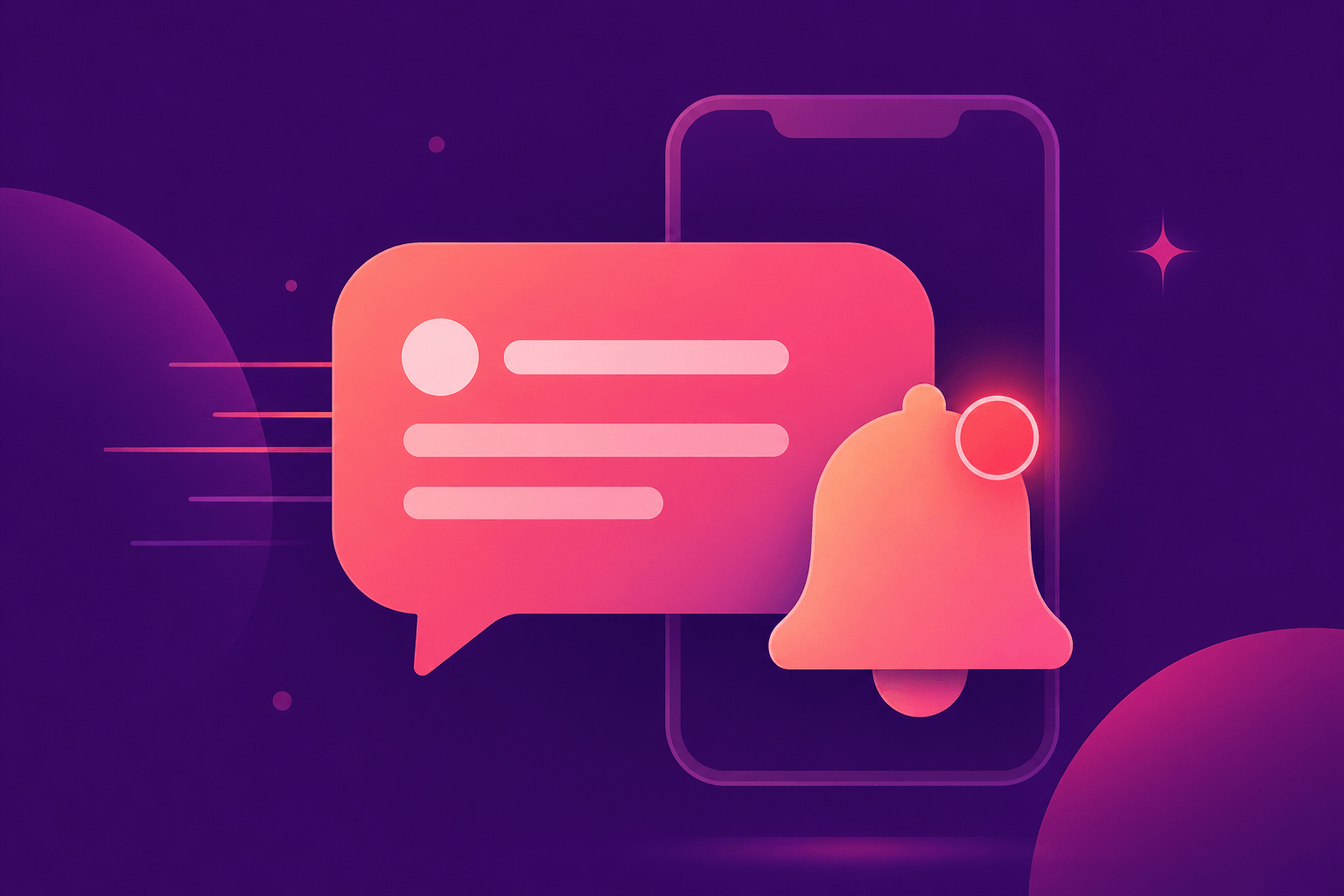
The first two only help if you happen to open Yarnoo. Push notifications fix that. Turn them on and a new direct message shows up as a normal notification on your phone or desktop, the same way any other app alerts you.
This is not about replacing the apps you already use. It is about the messages that arrive through Yarnoo landing somewhere you will actually see them, instead of waiting quietly for your next visit.
Turning it on
- Go to your account settings and find Notifications.
- Turn on notifications for this device. Your browser will ask for permission, and you need to allow it.
- Choose your categories: Messages for direct messages, News for product announcements, and System for important account and service updates.
A few practical notes:
- Permission is per device and per browser. Enabling it on your laptop does not enable it on your phone, so turn it on wherever you actually work.
- On iPhone, install Yarnoo to your Home Screen first. iOS only allows web push for installed apps. Yarnoo shows you the install steps if you try before installing.
- You can mute a specific person from inside their conversation without switching everything off.
What push delivers today
Being straight about the current state: direct messages are what push actively sends right now. The News and System categories exist, and your preferences are respected, but broad announcement pushes are not being sent yet. Product news still reaches you reliably in the in-app feed at /notifications.
We would rather ship the alert that costs you money when missed, and be honest about the rest, than promise a notification stream that is not switched on.
The Short Version
| Surface | What it carries |
|---|---|
| Messages | Conversations with organizers and artists |
| Notifications | Product news, announcements, account updates |
| Push | New direct messages, on your device, app closed |
If you are an artist, turning on push is the single cheapest thing you can do to win more work. Replying within the hour instead of within the week is, more often than anyone admits, the entire difference.
Turn it on in account settings.